
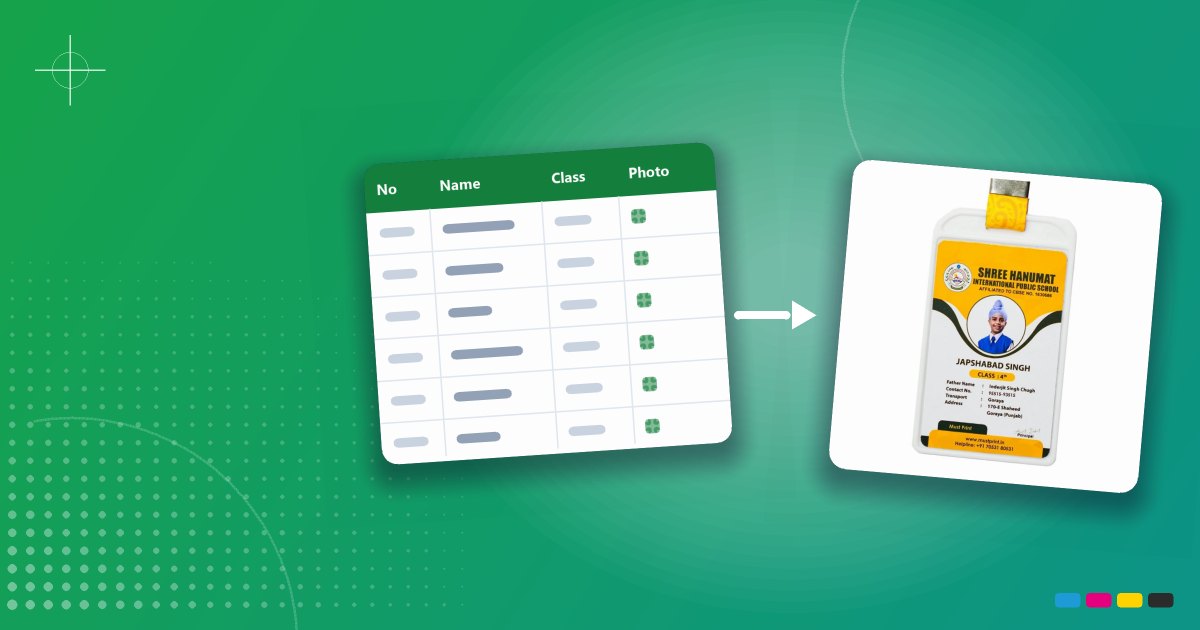
Making ID cards for a whole school sounds like a big job, but it is mostly about getting the data right. Once your Excel sheet and photos are clean, the printing is quick.
Quick answer: Put one row per student in an Excel sheet (admission number, name, class, parent's name, phone and so on). Name every photo with the student's admission number, for example
2026-0142.jpg. Choose a card design, merge the data into it, check a proof, then print. Most schools send the Excel sheet and the photos to the printer, who does the merging for them.
Here is the full process in 7 steps.
Step 1: Decide what goes on the card
Before you make the sheet, decide which details the card will show. Every column in your sheet should match something printed on the card.
A typical student card shows the photo, name, class and section, admission number, parent's name, phone number and blood group. The school name, logo, address and session year are the same for everyone, so they belong in the design, not in the sheet.
Step 2: Set up the Excel sheet
Use one sheet for the whole school, with one row per student. Here is a layout that works well:
| Admission No | Student Name | Class | Section | Father's Name | Phone | Blood Group | Photo |
|---|---|---|---|---|---|---|---|
| 2026-0142 | Aarav Sharma | VII | B | Rajesh Sharma | 98XXXXXX10 | B+ | 2026-0142.jpg |
| 2026-0143 | Simran Kaur | VII | B | Harjit Singh | 97XXXXXX22 | O+ | 2026-0143.jpg |
Follow these simple rules and you will avoid most printing mistakes:
- No merged cells and no blank rows in the middle
- One thing per column. Keep class and section separate if the card shows them separately.
- Write names exactly as they should print. If the design uses capital letters, the printer can change them for you.
- Format phone and admission number columns as Text, so Excel does not remove the leading zeros or turn numbers into "9.8E+09"
- Use one date style for the whole column, for example 14-03-2013
- Ask class teachers to check their class before the sheet comes to the office
Tip: Sort the sheet by class and section. The cards come back in the same order, and handing them out takes minutes instead of hours.
Step 3: Collect photos that print well
Photos cause more delays than anything else. Ask for:
- A front-facing, passport-style photo on a plain, light background
- Good light on the face, no filters and no sunglasses
- At least 600 × 800 pixels. Photos sent on WhatsApp are often shrunk, so ask for the original file or use "send as document".
- Each file named with the admission number:
2026-0142.jpg
Put all the photos in one folder and make a ZIP file of it. It is much easier to send one ZIP than 800 separate photos.
Step 4: Choose the card and the design
Pick the card type first, because it decides the size and the layout:
- Vertical White Holder ID Card: a printed card protected in a holder
- Acrylic ID Card: a premium, crystal-clear card with a bigger photo
- Parent Card (ATM Style): waterproof PVC in the bank card size
For layout ideas, see 15 school ID card design ideas. For exact measurements, see the standard ID card size guide.
Step 5: Merge the data into the design
"Merging" means placing each row of the sheet, and its photo, onto its own card. There are two ways to do it.
Let the printer do it (easiest). Send the Excel sheet and the photo ZIP. The printer places every student's details and photo on the card and sends you a proof. This is what most schools do, and it is included in our service.
Do it yourself. Tools such as CorelDRAW (Print Merge) or Canva (Bulk Create) can fill a design from a spreadsheet. MS Word mail merge works for text, but photos are hard to manage. Doing it yourself saves little money, and it is easy to make mistakes with hundreds of photos.
Step 6: Check the proof carefully
Before printing, you get a proof: a picture of the finished cards. Check it slowly. Correcting a proof is free; reprinting a card is not.
- School name, logo, address, phone number and session year
- Ten random students: name, class and photo match the right child
- The longest name in the school fits on one line
- Phone numbers and blood groups are complete
- The principal's signature is clear
Step 7: Print, finish and hand out
After you approve the proof, the cards are printed, cut, put in their holders and fitted with lanyards. At mustprint, our ID cards come with a 16 mm printed lanyard already attached, and orders usually arrive within 5–7 working days.
When the cards arrive, hand them out class by class, using the sorted list from step 2.
The easy way: send it to us
You can do everything online with mustprint:
- Pick a ready design in the design studio and add your school's name, logo and colours.
- Upload your names list (Excel or CSV) and your photos (JPG, or all in one ZIP).
- We send you a print proof. You check it and ask for changes if needed.
- Order and pay, and we print.
Already have your own design? Use the Upload Your Design page. Ordering for the whole school? Get a bulk quote, and read our tips on ordering ID cards in bulk without the last-minute rush.
Frequently asked questions
Can I make ID cards in Excel?
Excel is perfect for keeping the student data, but it is not a design tool. Use the Excel sheet together with a card design. Your printer, or a tool like CorelDRAW, merges the two.
What size should student photos be?
At least 600 × 800 pixels, front-facing, on a plain light background. On the card, the photo is usually about 25 × 32 mm.
How should I name the photo files?
Name each photo with the student's admission number, for example 2026-0142.jpg, and add the same file name in the Photo column of your sheet.
How long does it take to get school ID cards?
After you approve the proof, printing and delivery usually take 5–7 working days. Start collecting data three to four weeks before you need the cards.
What if a student joins after the cards are printed?
Keep your design and sheet ready. New admissions can be printed later in exactly the same design.